
連結 Google Merchant Center 和 Google Ads 帳戶
Google Merchant Center 能夠協助商家/廣告主儲存上傳的商品資訊。共廣告活動使用。
在 Akohub 應用程式上建立廣告最高成效活動(Google Performance Max 行銷活動)之前,您必須連結您的 Google Merchant Center 和 Google Ads 帳戶。
方法一、從Google連結Google Merchant Center
步驟:
-
前往「Google Merchant Center」( https://www.google.com/retail/solutions/merchant-center/ ),點擊右上角藍色按鈕「開始」。

- 往下輸入您的商家資訊,包括「商家名稱」、「商家所在國家」和「時區」。
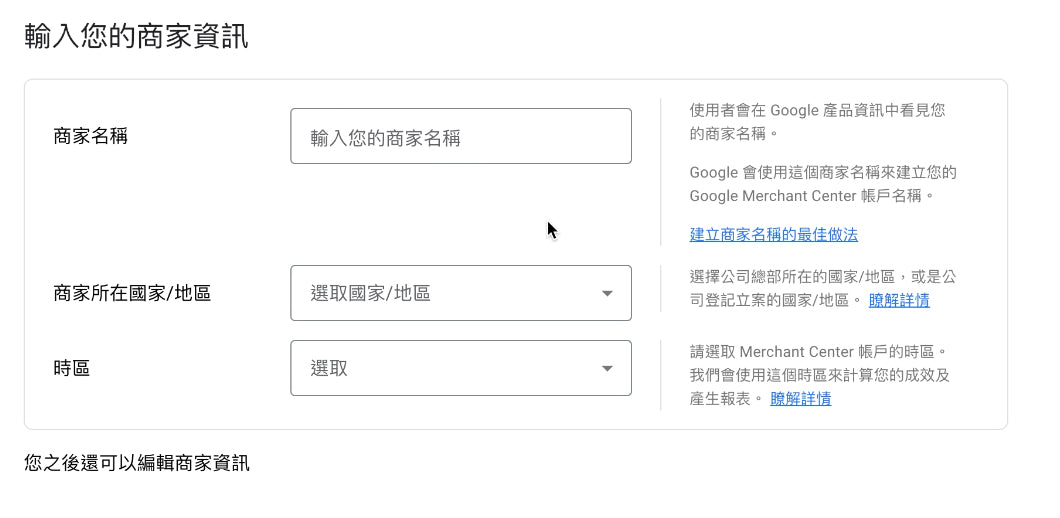
- 選擇客戶結算位置。

- 選擇您合作的第三方平台。

- 選擇電子郵件接受設定。

- 閱讀並接受「Google Merchant Center 服務條款」。

- 完成以上步驟後,點選「建立帳戶」。
-
點選“繼續”。

-
點擊右上角的工具圖標,然後點擊下方的“設定”,然後選擇“已連接帳戶”。

-
在「您的 Google Ads 帳戶」下方,找到要連結的「Google Ads 客戶 ID」,然後點擊「連結」。

-
登入您的 Google Ads帳戶。

-
找到要連結的Google Merchant帳戶,點擊「查看要求」。

-
點選“核准”。

- 返回您的Google Merchant Center頁面,然後重新載入頁面。
- 「連結狀態」下方將顯示為「有效」。

方法二、從 Shopify 的 Google 管道應用程式連結 Google Merchant Center
步驟:
-
前往「Shopify 應用程式商店」安裝「Google 管道」 ( https://apps.shopify.com/google ) 。

-
點選「新增銷售管道」。

-
點擊「連結Google帳戶」。

- 選擇跟隨您的 Google Merchant Center 和 Google Ads 帳戶的相同 Google 帳戶。
-
點選“允許”。

-
點選「新增退款政策和服務條款」。

- 完成「退款政策」、「隱私權政策」、「服務條款」和「運送政策」。

- 直至頁面底部,點選「儲存」。
- 點選右上角的「X」建置關閉視窗。
-
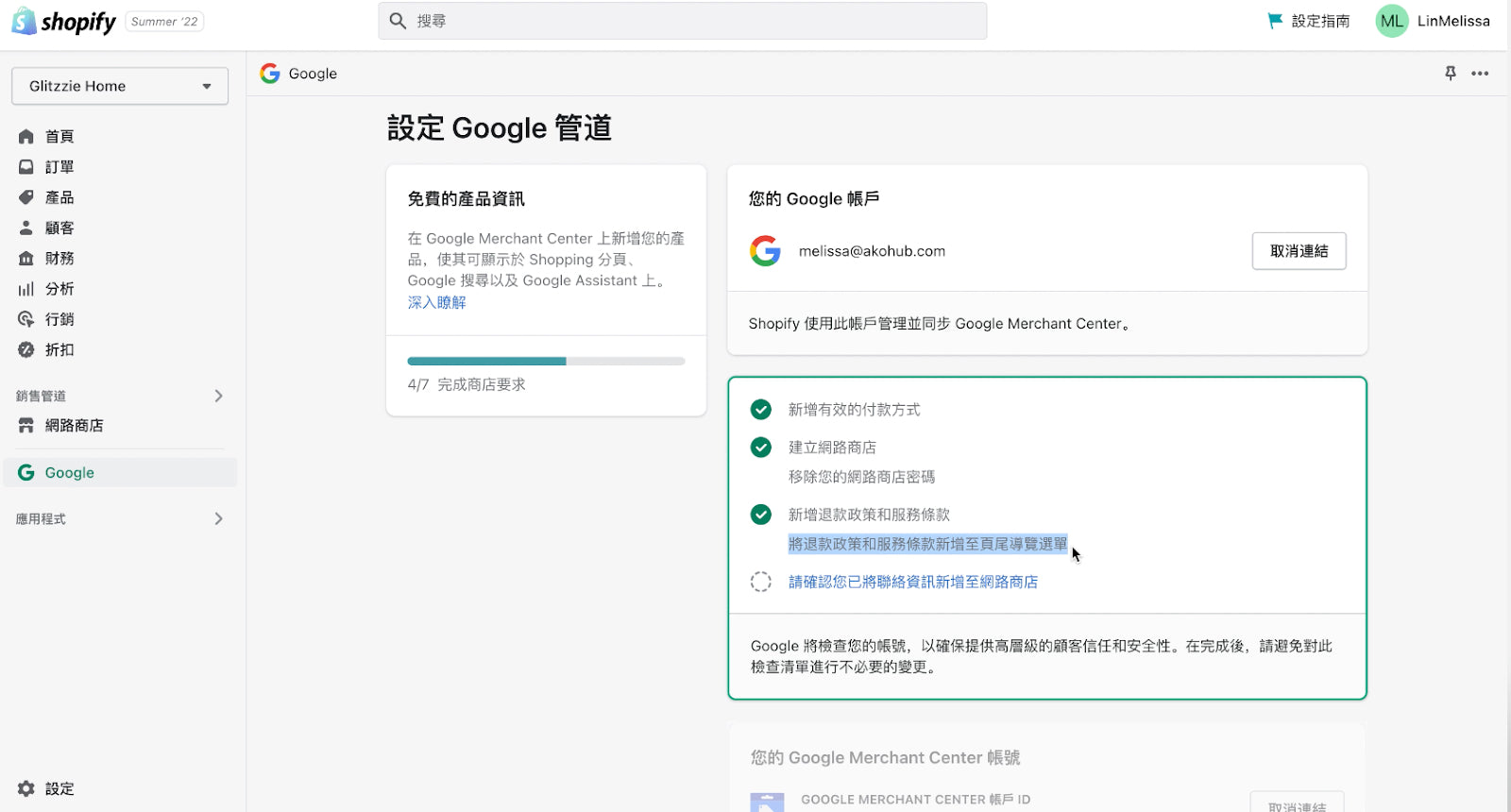
回到銷售管道下方的「Google」頁面,點選「將退款政策和服務條款新增至頁尾導覽選單」。
-
點選「請確認已將聯絡資訊新增至網路商店」。

-
點選“確認”。

-
輸入您的電話號碼以取得驗證碼,然後點選「取得代碼」。

-
輸入您的驗證碼,然後點選「驗證」。

-
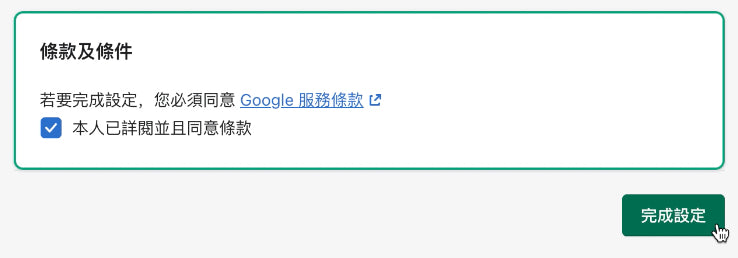
勾選「本人已閱讀並同意條款」,然後點選「完成設定」。
-
點擊 Google 管道下方的「設定」,直到「Google Ads 帳戶」按鍵,然後點擊「連結」。

-
若要檢查是否成功連結 Google Merchant Center 和 Google Ads 帳戶,您可以前往 Google Merchant Center 的「已連結帳戶」頁面( https://merchants.google.com/mc/linkedaccounts/googleads?a=573234418&hl=en&authuser= 2 ),然後重新整理頁面。

參考資料:
- https://support.google.com/merchants/answer/6159060?hl=zh-CN#zippy=%2Cstep-request-link-to-google-ads-in-merchant-center%2Cstep-approve-link-request -in -Google廣告
- https://www.bluewinston.com/link-your-google-ads-and-google-merchant-accounts/
- https://help.shopify.com/en/manual/promoting-marketing/create-marketing/google/setup